
Professional AI visualization generator for free? The new Lumion AI generator and other tools

Publisher
Tisková zpráva
29.08.2026 14:00
Tisková zpráva
29.08.2026 14:00
Lumion now covers the entire range of visual creation, as it has added the last missing components, an AI image generator and post-production tools. Currently, you can upload any render (or screenshot from your model) to Lumion Cloud and have it enhanced by AI for free. The entire workflow that Lumion now covers is briefly described at the end of the article. First, let's look at the news.
AI Image Generator
The AI generator works as you are accustomed to from other online applications, simply using current quality AI models from various sources, with one difference: you don’t pay for credits or anything else. You can upload a screenshot from your model, a quick render from Lumion View, or your quality render from Lumion Pro into the generator – then you give instructions. It works very simply, like everything we do; you just let the application check the parameters, optionally click to adjust the time of day, specify what the AI should not change (default buttons), and hit "create." You can then add the resulting output as a variation or version to your upload, place it in your project, and share it for comments or further edits, etc. That's up to you.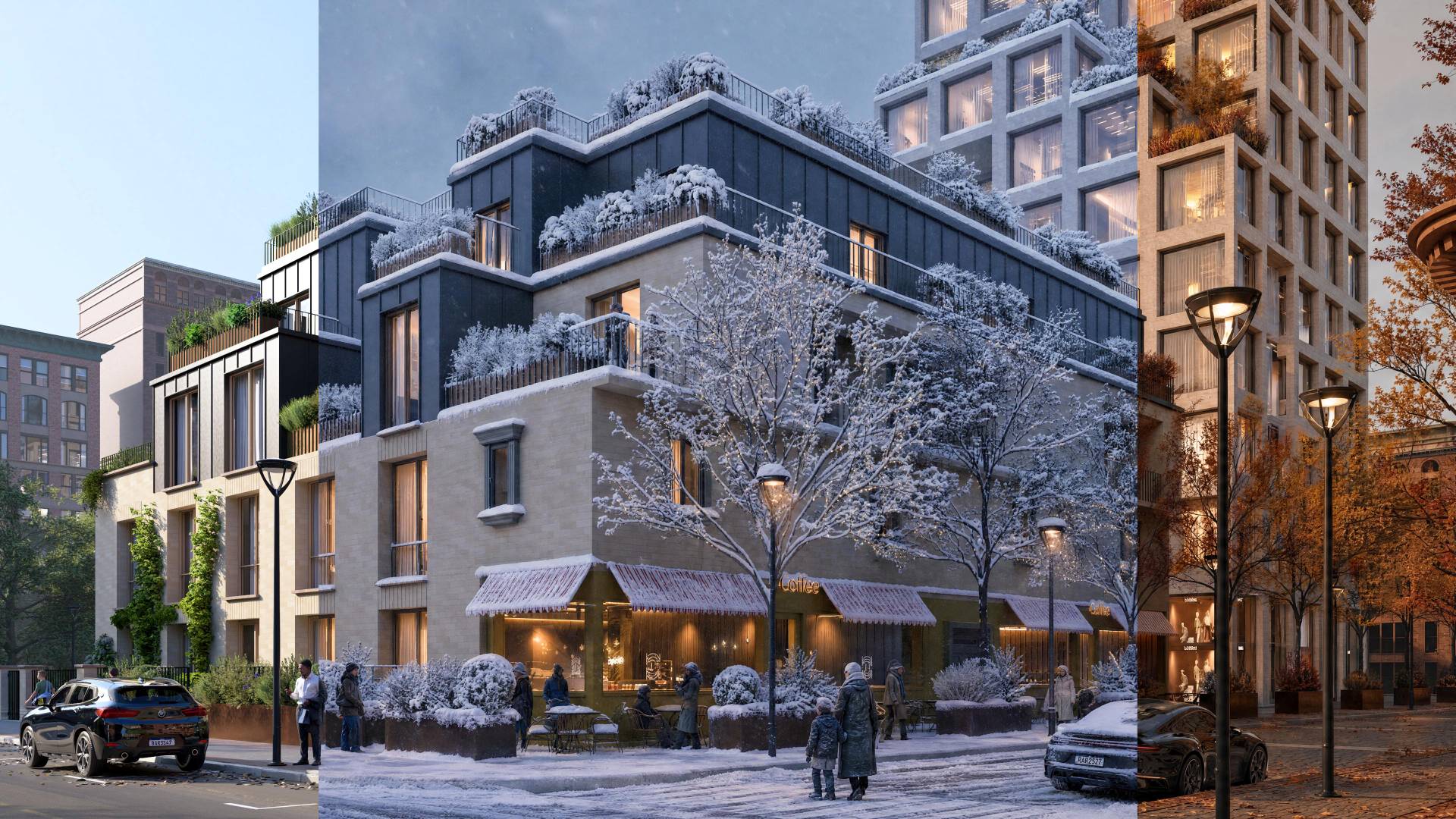 |
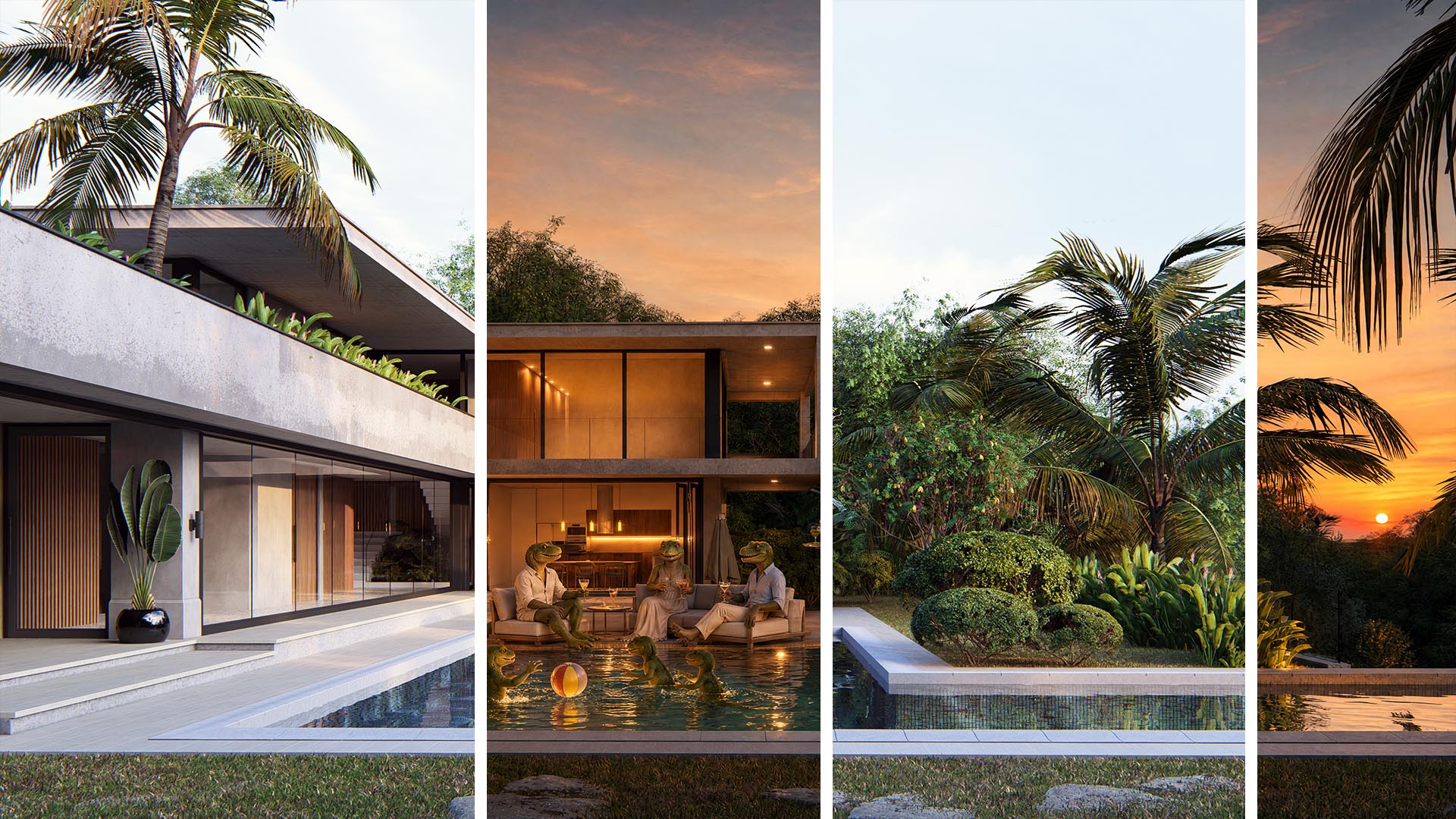
Currently, the Cloud works with Flux PRO models and GPT Image2, but it has only been available for a few days, so some development is certainly still expected. Currently, it can be used to create a quick image from a CAD application screenshot, or better, from a quick render to enhance it (whether from Lumion Pro or Lumion View, or other applications, of course) or to finalize adjustments for the most professional render. The tool is also suitable for preparing backgrounds, such as backgrounds for photo illustrations or preparation for the AI material generator, which is also free on the Cloud.
 |
If you are used to a specific tool and have tuned prompts, you can use them here as well. But what can you do with this tool?
- After specifying materials, etc., it is of course suitable in the initial phases – possibly for small specific adjustments.
- Preparation of photos for photo illustrations and removal of unwanted elements (fences, wires, cars, etc.)
- Changing mood and adding/removing details/trinkets
- Adding or removing characters, trees, plants, cars, etc.
- Changing the time of day and weather
- Changing the season
- Enhancing 3D characters and plants
- Since it is AI, theoretically, you can use it for anything you give it.
Here is a video of how it works:
If you're interested, take a closer look and try it out here:
https://www.lumion.cz/cloud/
Post-Production Directly on the Cloud
Perhaps equally handy, if not handier, is the second new feature. Post-processing directly on the Cloud. If you want to crop an image, rotate it, remove some parts, change the scale, add a color filter, or set basic exposures, etc., you can. Everything can be done directly from the Cloud, where you automatically upload your render. Then just click the "EDIT" button and you have everything at your fingertips.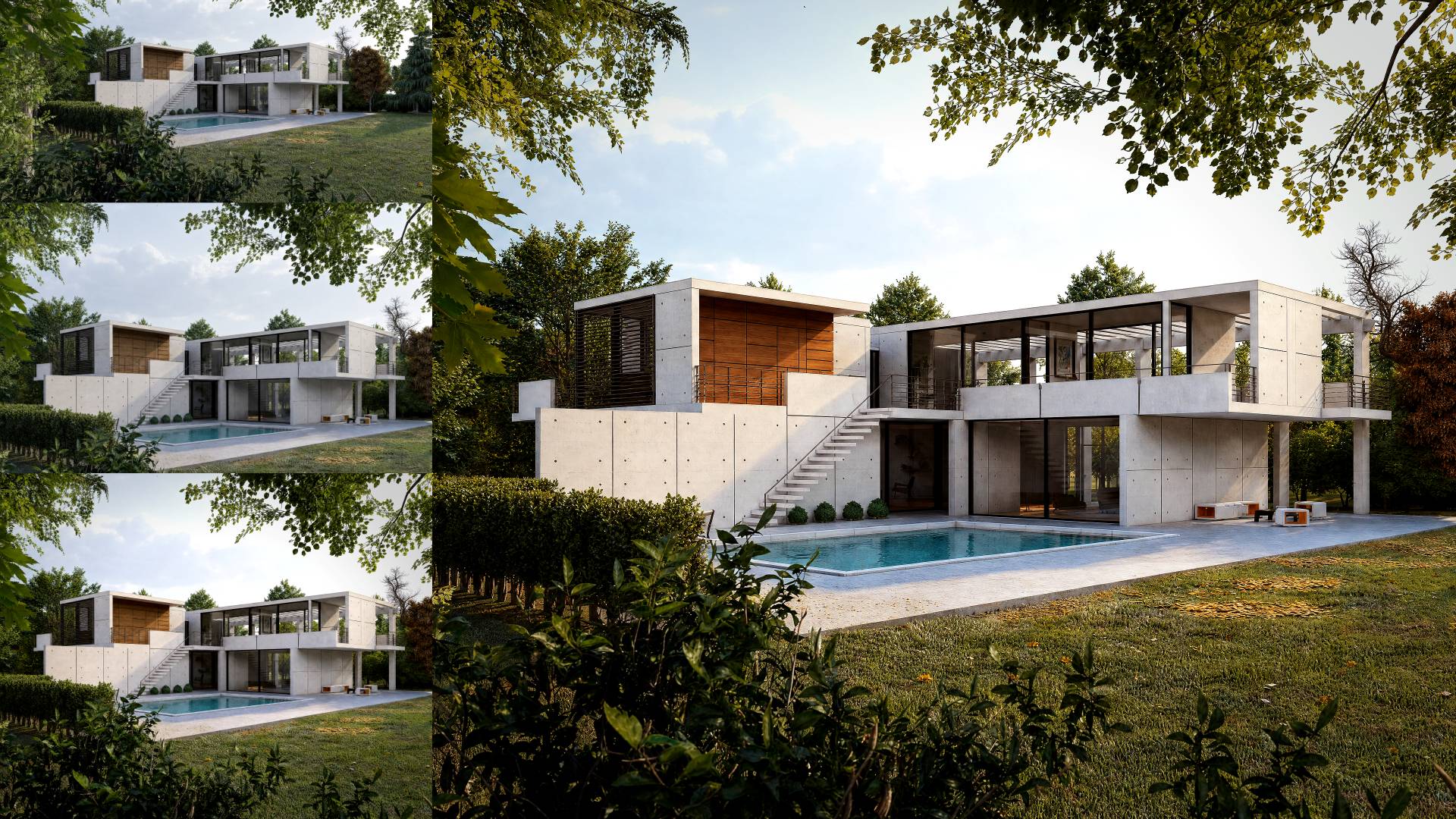 |
The tool currently consists of three parts – Cropping and Rotating, Color Correction, Filters. By combining color correction and filters, we can completely change the color of the output and give it a totally different mood, achieving very different moods from a neutral render. With a clear intention from the start, you can beautifully fine-tune the final look and not require additional tools.
Instructions are here:
In terms of workflow, you now have the following with Lumion:
- A quick AI visualization generator for initial communication and engaging the customer.
- The ability to walk through the model in an extremely lightweight Lumion View plugin (SketchUp WIN and MAC, Revit, Archicad), which brings new lighting technologies, materials, etc., into the model with just one click, allowing you to provide a more lifelike experience to the customer during initial consultations.
- During consultations throughout the process, you'll appreciate the AI material generator, post-production tools, notes directly in the project, and versions in Lumion Cloud's user-friendly interface.
- You can also utilize panoramas as a VR tour via a link (QR code) on Lumion Cloud, where you prepare up to 300 views/locations for the client, and they can comment directly in VR and add notes, links, etc. You can also prepare this tour for them in the same way with specific notes, images, links, etc.
- You have the option to create professional visualizations, videos, and animations in Lumion Pro, which constantly expands its capabilities.
- You can use basic post-production directly after rendering in the Lumion Cloud environment. This way, you don't have to jump straight to Photoshop or similar, as you'll find everything you need for basic edits here, including LUT filters, image cropping, and color correction.
- For final adjustments, you can again use the AI visualization generator to enhance already finished renders – it can easily prevent unwanted changes in just a few clicks and keeps a history available. Another valuable option is the AI upscaler, which allows you to slightly enhance outputs, for example, for printing, or to add fine detail to materials, etc.
We know that the communication process is not only about visualizations; often, different types of illustrative aids are needed, so important changes are also being prepared within Lumion View, which we will introduce to you soon. The possibilities will significantly expand, and the Lumion ecosystem will grow substantially beyond traditional archviz.
The English translation is powered by AI tool. Switch to Czech to view the original text source.
0 comments
add comment